1.5

PulseGrid Studio 1.5 is here, and it's open source. Drum kits you can build a beat from, a new playlist, 150 instruments, and the source code on GitHub.

See what's new

A free and open-source music studio

PulseGrid Studio has a step sequencer, piano roll, playlist and mixer, with 150 instruments and 14 effects built in. It runs on Windows, Mac and in your browser, and its source code is on GitHub under the GPL.

  • Free and open source (GPL-3.0)
  • No account needed
  • Works offline
  • No ads or tracking
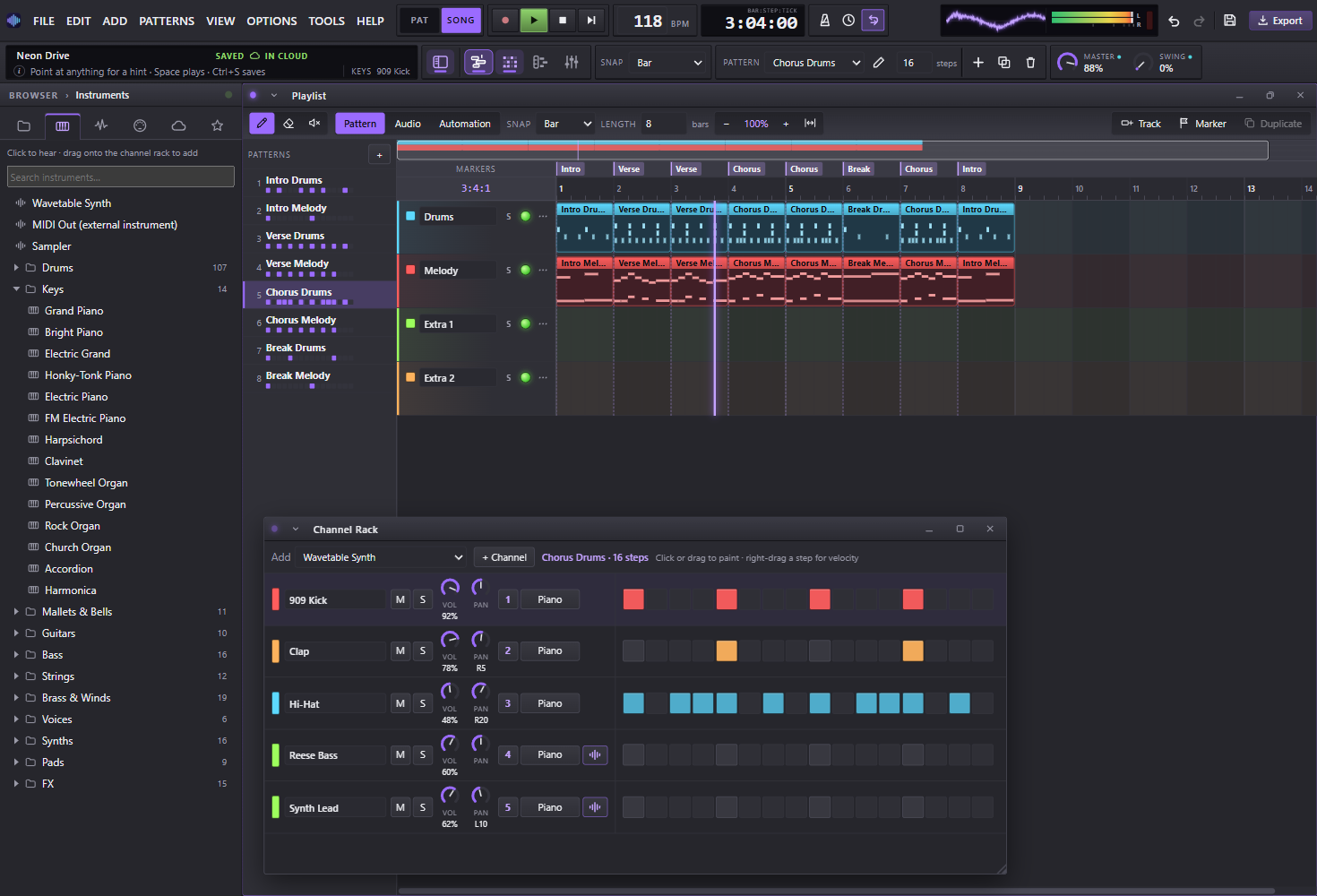
PulseGrid Studio playing a song: the instrument browser, the playlist, the channel rack and the master monitor in the top bar
150instruments
14effect plugins
16mixer channels with sends
WAV & MP3export

Everything you need to finish a track.

The workflow producers already know: patterns in the channel rack, melodies in the piano roll, the song in the playlist, and the mix in the mixer.

01

Program drums in seconds

Click or drag across the step grid to lay down a beat. Set velocity per step, add swing, and give every channel its own volume, pan and mixer insert.

  • Ten recorded drum kits and nine drum-machine voices
  • Hear a sound in the browser, then drag it onto the rack
  • Paint by dragging, right-drag a step for velocity
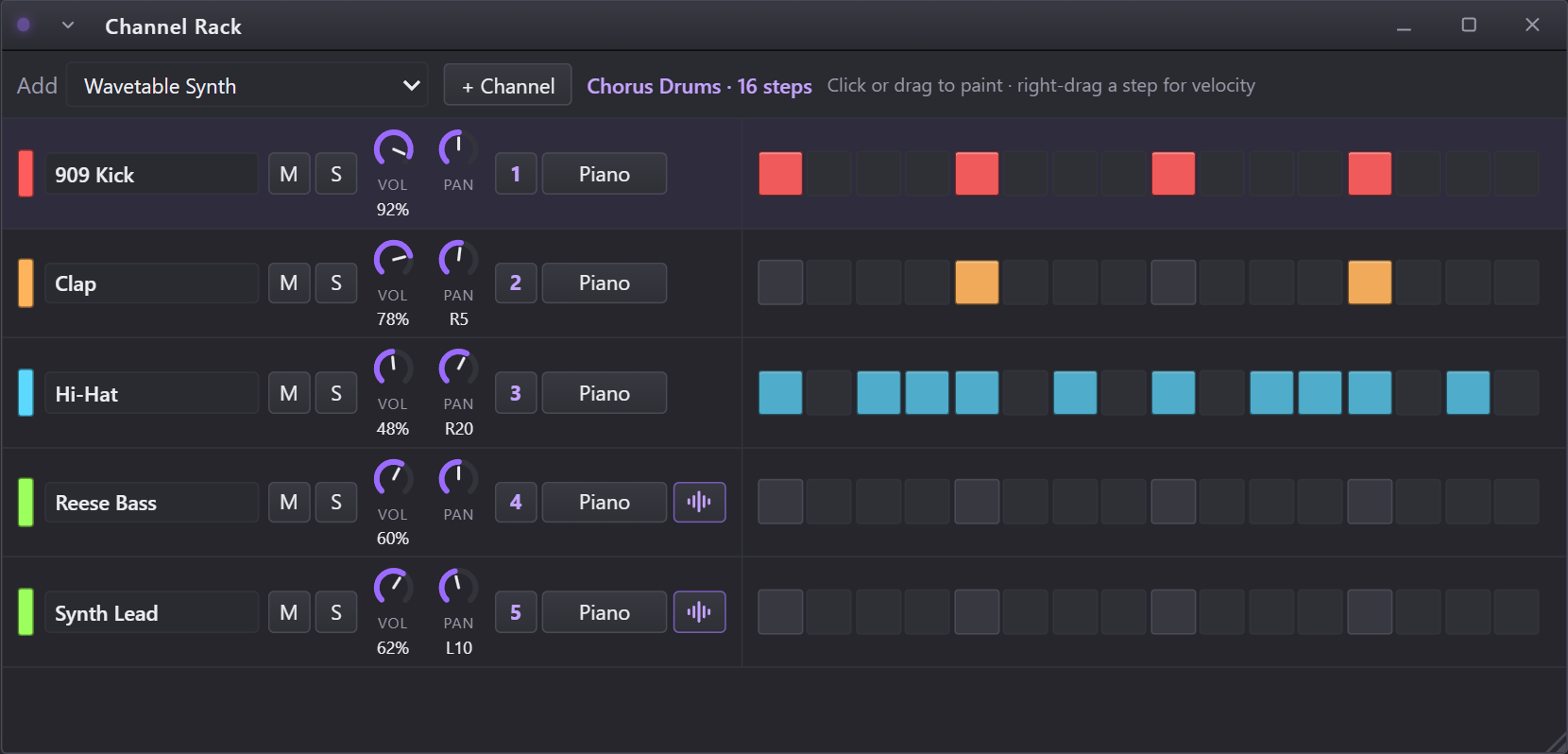
The channel rack with a drum pattern, its steps stretched to fill the window
02

Write melodies in the piano roll

Draw, paint, erase and select notes, then quantise them to the grid. Scale highlighting keeps you in key; ghost notes show what the other channels play.

  • Velocity lane under every note
  • Copy, paste and duplicate with the usual shortcuts
  • Record straight in from a MIDI keyboard
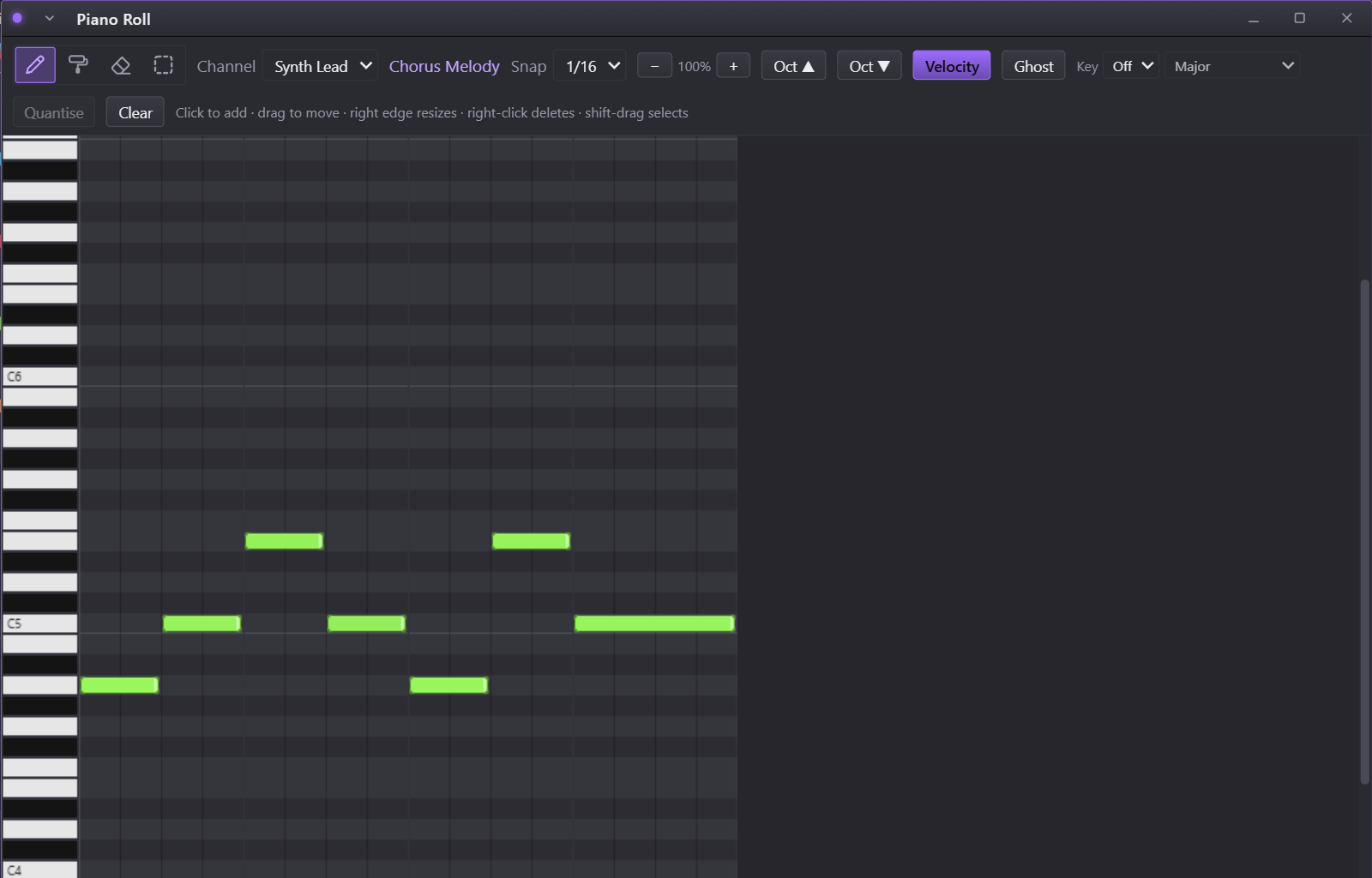
The piano roll with a lead melody and its velocity lane
03

Mix with real routing

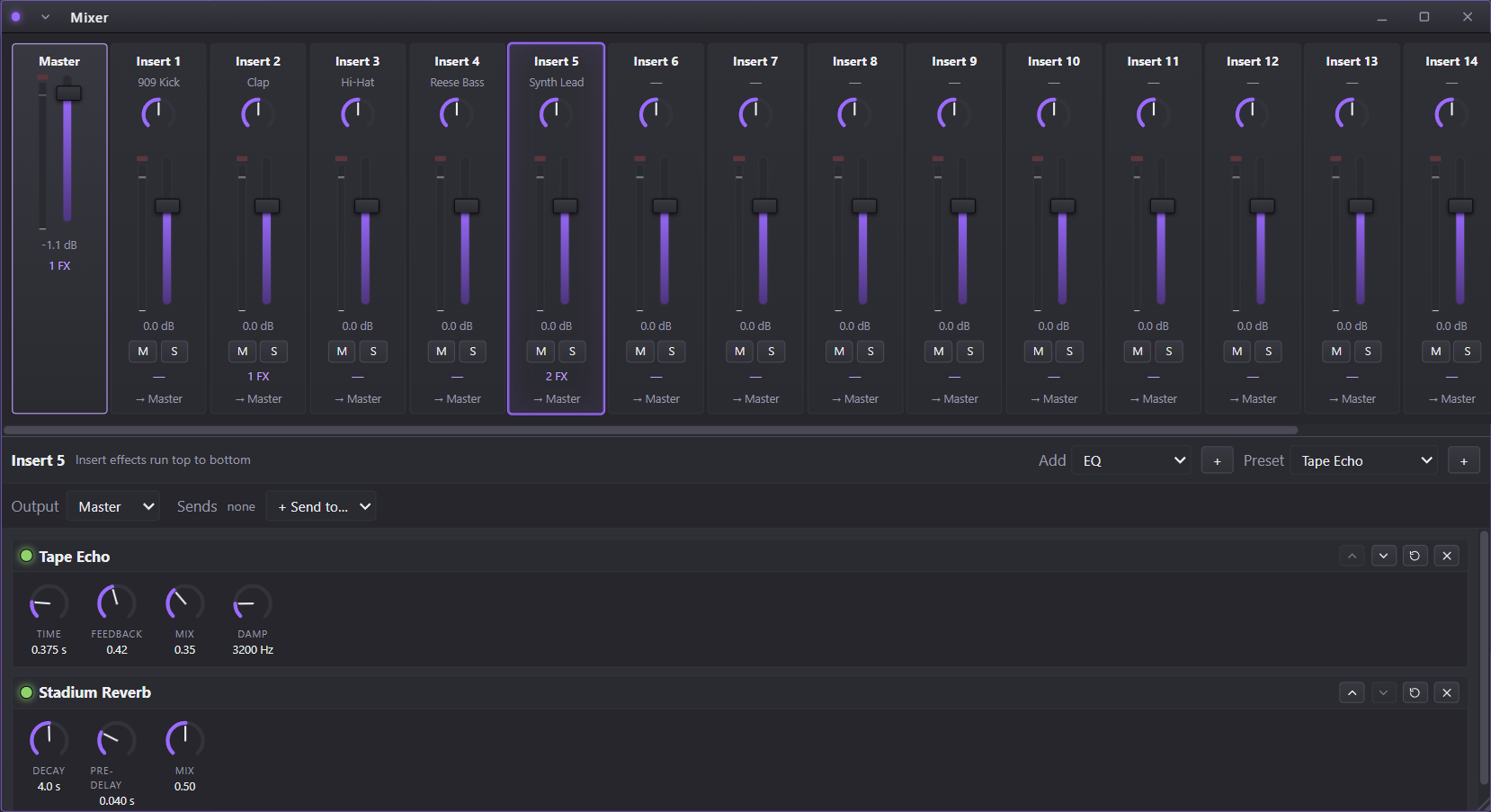
Sixteen mixer channels, each with its own effect chain. Send them to a shared reverb, group them into buses, and watch peak meters with clip lights.

  • 14 effects, from EQ and compressor to phaser and bitcrusher
  • Sends and bus routing, with loop protection
  • Master limiter so exports never clip
The mixer with sixteen channel strips and an effect chain on one insert
04

See the whole song at a glance

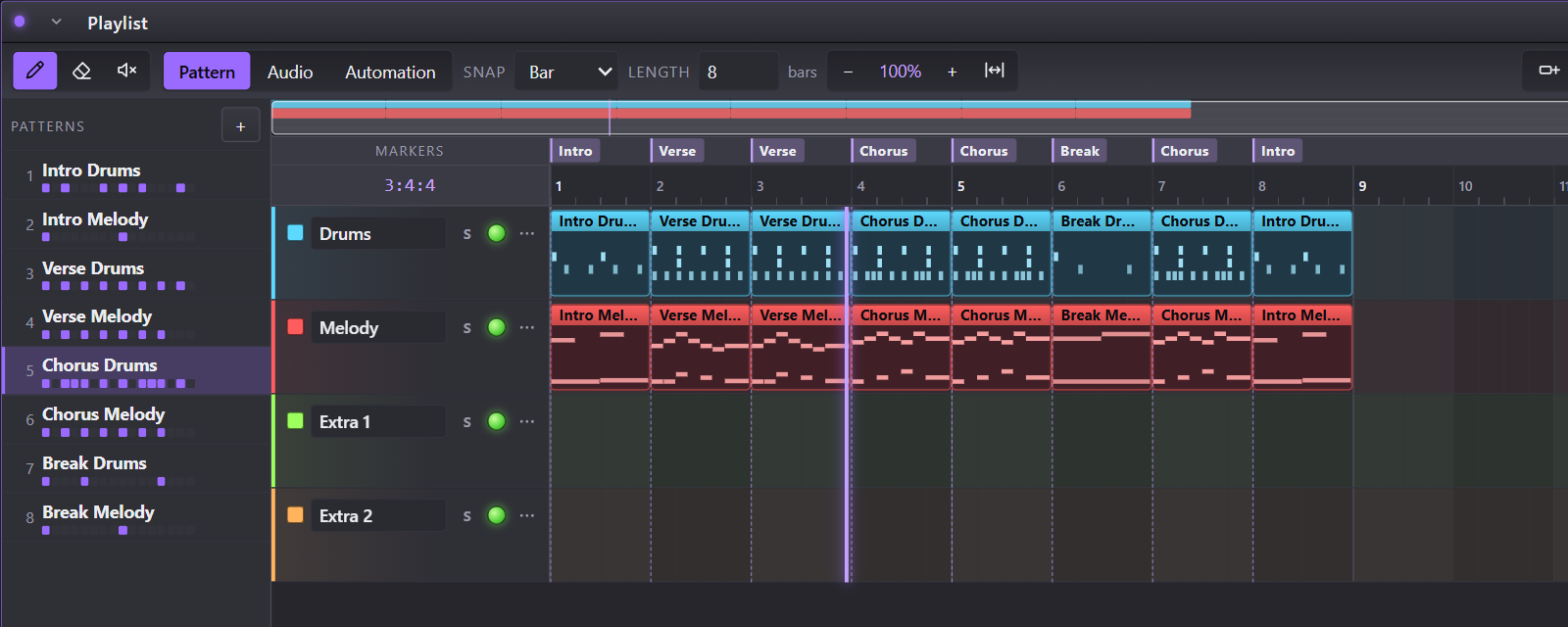
Every clip on the playlist shows what's inside it: drum hits laid out in rows, melodies by pitch, audio as a waveform. Arrange sections, drop in markers and loop the part you're working on.

  • Patterns, audio and automation on colour-coded lanes
  • Section markers and loop regions
  • Drag to move, pull an edge to resize
The playlist with drum and melody clips that show their notes, under section markers
05

Take your projects anywhere

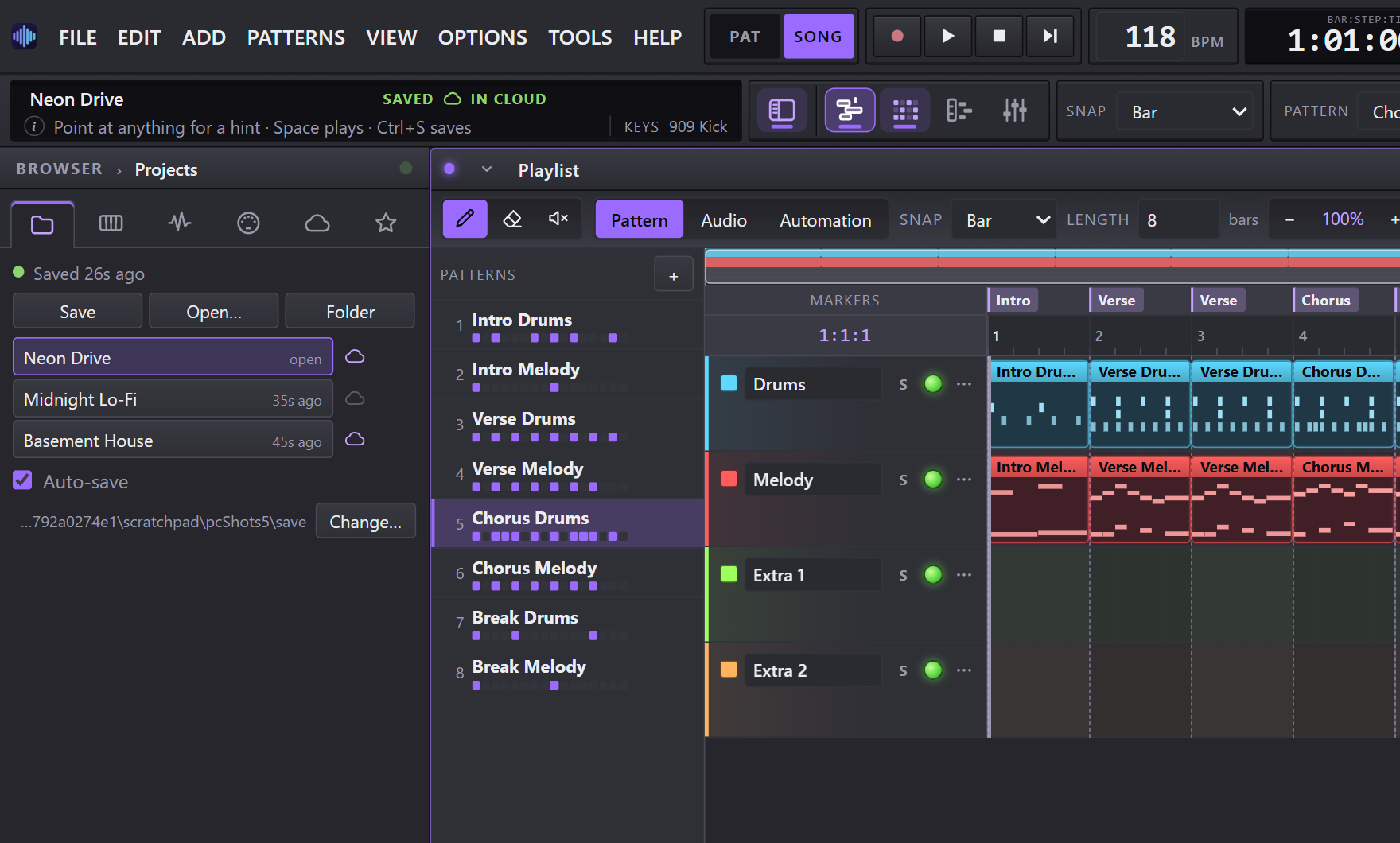
Sign in with a free account and choose which projects go to your cloud. Those follow you between Windows, Mac and the web studio, uploading after every save. The rest stay on your computer, and nothing leaves it until you choose.

  • One click beside a project puts it in your cloud
  • Changed on two computers? Both versions are kept, never overwritten
  • Works offline and catches up when you're back
The Projects tab with a cloud button beside each project, and the menu bar showing the open project is in the cloud

Watch the master

An oscilloscope, a stereo peak meter with a clip light, and CPU, memory and voice counts in the top bar, the way FL Studio shows them.

Plug in a MIDI keyboard

Keys play with velocity, pads hit your drums, knobs control the mix. Works with the Akai MPK mini IV and other USB keyboards, and MIDI Out plays instruments in other programs.

Never lose work

The desktop app auto-saves every project to your own folder seconds after each change, and keeps backups.

Export anywhere

Render the whole song or a single pattern to WAV or MP3, ready to share or send on.

Undo everything

Every edit (notes, steps, knobs, clips) can be undone and redone, grouped the way you made it.

Record and sample

Import your own audio or record from a microphone, then play it from a sampler channel or drop it on the playlist.

Sync between computers

A free, optional account keeps the projects you choose in step between Windows, Mac and the web studio.

Updates by themselves

The Windows app finds new versions on its own and offers a one-click restart, saving your project first. The Mac app tells you when one is out.

Easy to start

A short tour on first launch, a hint for anything you point at, demo songs to take apart, and a Settings window (F10) for the rest.

150 instruments. 14 effects. Nothing to download.

Recorded instruments and the studio's own synths, sorted by family. Click any of them in the browser to hear it, then drag it onto the channel rack. The recorded instruments come with the Windows and Mac apps; the web studio has the synths, the drum machine and the effects, and can load SoundFont files of your own.

Drums 19

Standard, Room, Power, Electronic, 808/909, Dance, Jazz and Brush kits, each as a drum set (one channel per drum), a full kit, or any of its drums on its own · Orchestral percussion · Taiko · nine drum-machine voices

Keys 14

Grand & bright piano · Electric & FM piano · Honky-tonk · Harpsichord · Clavinet · Tonewheel, rock & church organ · Accordion · Harmonica

Mallets & bells 11

Celesta · Glockenspiel · Music box · Vibraphone · Marimba · Xylophone · Tubular bells · Kalimba · Steel drums · Glass & digital bells

Guitars 10

Nylon · Steel · Jazz · Clean · Muted · Overdrive · Distortion · Banjo · Sitar · Koto

Bass 16

808 sub & boom · Upright · Finger · Pick · Fretless · Slap · Synth basses · Reese · Acid · FM · Wobble · Analog

Strings 12

Violin · Viola · Cello · Double bass · Ensemble · Slow & tremolo strings · Pizzicato · Synth strings · Harp · Timpani

Brass & winds 19

Trumpet · Trombone · Tuba · French horn · Brass section · Four saxophones · Oboe · Bassoon · Clarinet · Piccolo · Flute · Pan flute · Shakuhachi

Voices 6

Choir · Voice oohs · Synth voice · Solo vox · Space voice · Vowel lead

Synths 16

Supersaw · Saw & square leads · Fifth saw · Polysynth · Chiptune · Hyper & future plucks · Wavetable leads and plucks

Pads 9

Warm · Fantasia · Halo · Sweep · Bowed glass · Metal · Bright · Dark evolving · Glass

FX 15

Noise riser · Downlifter · Impact · Sub drop · Reverse crash · White noise sweep · Reverse cymbal · Orchestra hit · Atmospheres

Plugins 3

Wavetable Synth · MIDI Out (instruments in another program) · Sampler · and any instrument's panel loads .sf2 SoundFont files of your own

Effects

  • EQ
  • Filter
  • Compressor
  • Limiter
  • Reverb
  • Delay
  • Chorus
  • Flanger
  • Phaser
  • Tremolo
  • Auto Pan
  • Stereo Width
  • Distortion
  • Bitcrusher

Desktop app or web studio.

The same studio either way. Projects move freely between the two as .pulsegrid files, or automatically with cloud sync.

Feature Desktop app Windows 10 & 11 · macOS 12+ Web studio Chrome, Edge or Firefox
PriceFreeFree
InstallWindows installer or Mac appNothing to install
Where projects liveFiles in your own folderYour browser's storage
Auto-saveTo the project file, with backupsIn the browser
Export WAV & MP3Straight to an Exports folderAs downloads
MIDI keyboardsConnect automaticallyAfter allowing access
InstrumentsAll 150, recorded and synthesizedThe synths, drum machine and FX, plus your own .sf2 files
MIDI out to other programsYesYes, after allowing access
Cloud syncOptional; you pick the projectsOptional; you pick the projects
UpdatesInstalled automatically on Windows; announced on MacAlways the latest
Works offlineAlwaysNeeds the page to load

Open source

The source code is on GitHub under the GNU General Public License, version 3. You can read how it works, build it yourself, change it and share your changes, as long as what you share stays open source too.

Get the code

git clone https://github.com/BerdalYe/pulsegrid-studio.git

React, TypeScript and the Web Audio API, with Electron for the Windows and Mac apps.

Build it

npm install
npm run app:dev

Needs Node.js 22 or newer. The README covers the installers and the web studio.

The licence

Use it for anything, change it, share it. Whoever shares a changed version shares its source code too, under the same licence. Your music is never affected: it's yours.

Read the GPL-3.0

View PulseGrid Studio on GitHub

What's new

Version 1.5.0

Latest

PulseGrid Studio is now open source. Also: 150 instruments with drum kits you can build a beat from, a new playlist, a browser and master monitor in the style of FL Studio, a Settings window, and MIDI out for the instruments that came with your keyboard.

  • 150 instruments, sorted by family. Drums, Keys, Mallets & Bells, Guitars, Bass, Strings, Brass & Winds, Voices, Synths, Pads and FX. The desktop apps add recorded instruments: pianos, organs, guitars, basses, a full orchestra, choirs and ten drum kits including an 808/909 kit. They come with the app, work offline, and are saved with your project and included when you export audio.
  • Open source. The source code is on GitHub under the GNU GPL, version 3: read it, build it, change it and share your changes. Bug reports and pull requests are welcome.
  • Drum kits you can build a beat with. Each kit has its own folder: the Drum Set adds its kick, snare, clap and hats as separate channels, so you click a beat in on the channel rack the way you do in FL; the Full Kit puts every drum on one channel, with each key of the piano roll named after its drum (on the computer keyboard, Z is the kick); and each drum is there on its own too. A kit's panel has 16 pads to hear it, or to change which drum a channel plays, and a list of kits to swap to.
  • A new playlist. Tools like FL's (draw, delete and mute, so a clip can be silenced without removing it), a strip showing the whole song that you click or drag to move around, a ruler you drag to move the playhead, a zoom readout and a button that fits the whole song in the window. Tracks have a mute light, solo and a menu (colour, height, move, clear, delete; or right-click the track). Drag a pattern from the list onto a lane to place it, and double-click a clip to open its pattern.
  • A piano roll that shows what's playing. Keys light up as their notes play, and as you play them on the computer keyboard or a MIDI keyboard; the notes under the playhead glow; the key of the row under your mouse is marked. Click and hold a key to hear it, and slide along the keys to play them in turn.
  • Touchpads. In the piano roll and the playlist, two fingers scroll in any direction and a pinch zooms. A mouse wheel still zooms, as before.
  • FX for builds and drops. Noise riser, downlifter, impact, sub drop, reverse crash and white noise sweep, plus reverse cymbal, orchestra hit and atmospheres.
  • Hear it first, then add it. In the browser, a click plays an instrument or a sample so you can hear it; drag it onto the channel rack to add it. Drop a sample on a sample channel to swap its sound. You can still add from the channel rack and the Add menu. Imported and recorded audio goes into the sample list.
  • A browser in the style of FL Studio. A row of icons across the top switches between Projects, Instruments, Samples, Keyboard & MIDI, Cloud sync and Demo projects. The instrument library is a searchable tree. Drag the browser's edge to make it wider.
  • A header laid out like FL Studio's. The top row holds the menus, pattern and song mode, the transport, tempo and time, and a master monitor: an oscilloscope, a stereo peak meter with peak hold and a clip light, and a performance box with CPU load and its recent history, memory in use, the number of voices playing, and a warning if the sound drops out. The second row holds the hint panel, with the project's name and a hint for whatever you point at, then the windows, snap, the pattern and the master knobs.
  • Choose what goes to the cloud, and delete projects. Only the projects you choose go to your cloud now: the cloud button beside a project in the Projects tab saves it there, open or not. The bin button deletes a project to the Recycle Bin, so you can get it back.
  • A Settings window. Press F10 or choose Options → Settings: the audio output and latency, metronome volume, how hard the computer keyboard plays, the MIDI port and drum-pad channel, the theme and the size of the whole interface (desktop), and more.
  • Panels that behave. Leave a panel partly out of view, or bring it near a side and it locks there. Resize from any edge or corner, double-click a title bar to maximise, and use the ▾ on each title bar for that panel's own menu. The channel rack's steps stretch to fill their panel, and its playhead now sits exactly over the playing step.
  • Plugins: Wavetable Synth, MIDI Out and Sampler. A recorded instrument's panel lists the instruments by family, so you can swap to another one, and loads .sf2 SoundFont files of your own. MIDI Out sends a channel's notes to another program, for example the Akai Studio Instrument Collection that comes with the MPK mini IV, through a virtual MIDI cable such as loopMIDI.
  • Better MIDI keyboard support. Keyboards with several ports, like the MPK mini IV, play without stray notes from their control ports, and a live MIDI monitor shows what each key, pad and knob sends.
  • Menus like a desktop program, with shortcuts in their own column and flyouts, opening just under the menu bar, and staying signed in when you close the app.
  • The mixer no longer writes "C" under every pan knob: a knob at the centre shows nothing, and one turned to a side shows how far (L20, R35).

Version 1.4.0

PulseGrid Studio now runs on Mac.

  • A Mac app. One .dmg download that works on both Intel and Apple Silicon Macs (macOS 12 or newer). Open it, drag PulseGrid Studio into Applications, and right-click → Open the first time: the app isn't signed with an Apple Developer certificate yet, so macOS asks once. The Installing on a Mac steps in the download section cover the rest.
  • Made for the Mac keyboard. Menus, tooltips and the shortcut list (F1) say ⌘, ⌥ and ⇧, and ⌘ works wherever Ctrl does. Text fields copy and paste, ⌘Q quits, and double-clicking a .pulsegrid file or signing in with Discord opens the right app.
  • Updates on the Mac: the app checks for new versions as usual. When there is one, the menu bar shows Version X is available · Download, which opens the download page.
  • The Windows app is unchanged apart from these shared improvements. It still updates itself.

Version 1.3.1

The wavetable synth is now a plugin you can find.

  • Add → Plugins → Wavetable Synth. Choose it from the Add menu (or the channel rack's Add list, then + Channel) and it creates the synth and opens it straight away. Plugins now have their own group at the top of the list; the thirteen starter sounds moved to Wavetable sounds.
  • A button on every synth channel. The little wave button at the end of a synth channel's row opens, and closes, its sound editor. No more digging through the channel's settings.
  • F8 opens the sound editor for the selected synth channel, and closes it again. Press F1 for the full list of shortcuts.
  • The channel rack makes room for the new button, and the editor's title now says which synth you are editing.

Version 1.3.0

A wavetable synthesizer, a new logo, and a new installer.

  • A wavetable synth, in the style of Serum. In a synth channel's Edit sound…, switch the oscillators to Wavetable. Two wavetable oscillators (nine tables, from Basic Shapes and Pulse Width to Vowels, FM Sweep and Digital) with a live picture of the wave: drag across it, or turn Position, to morph the sound. Unison with detune and stereo width, a sub oscillator and noise, a filter with its own envelope and key tracking, and an extra modulation envelope (Env 2) and two LFOs.
  • Drag a source onto a knob. Take Env 2, LFO 1, LFO 2, Velocity or Key from the bar at the top and drop it on any knob with a small dot, such as the wavetable position, cutoff, resonance, levels or volume. A ring on the knob shows how far it moves, and a list at the bottom lets you set how much, or take a link away. Up to eight links per sound. You can also click a source, then click a knob.
  • Thirteen new wavetable sounds in a new Wavetable group of the instrument menu: supersaw, reese, wobble bass, vowel lead, FM pluck, glass pad, PWM strings, sync lead, digital bell, organ, brass and more. Open any of them in the editor and change it.
  • A new logo. A new app icon, installer icon and website icon: a pulse rising to a peak over a faint step grid.
  • A new installer. PulseGrid Studio now installs from an .msi file, just for you, with no administrator needed. Updates still arrive by themselves: the app downloads the new installer, checks it against a checksum and, when you press Restart to update, installs it and opens the new version. If you installed 1.2 or earlier with the old .exe, remove it under Settings → Apps first and install this one; your projects stay where they are.

Version 1.2.0

Design your own sounds.

  • A synthesizer for every synth channel. Open a synth channel's settings and press Edit sound…. Two oscillators with their own waveforms, unison and stereo width, a sub oscillator and noise, a filter with its own envelope and key tracking, a volume envelope you can see, FM, vibrato, tremolo, filter wobble and pitch drop. Start from any of the built-in sounds and change it, or build one from scratch. Your sound is saved inside the project, so it travels with it, cloud sync included. Back to preset undoes it, and every knob move can be undone.
  • Smoother Discord sign-in in the Windows app. After you approve in Discord, your browser now shows a page that hands you back to PulseGrid Studio, instead of staying stuck on Discord.

Version 1.1.0

Sign in with Discord.

  • Continue with Discord. Under Cloud, choose Continue with Discord instead of typing an email and password. In the Windows app it opens your browser and brings you back signed in. If your Discord email matches an account you already made, you land in that same account with your projects. Cloud sync is still optional.

Version 1.0.0

First full release

PulseGrid Studio 1.0 brings your projects with you, keeps itself up to date, and makes the first hour easier.

  • Cloud sync. Create a free account under Cloud in the left panel and your projects follow you between the Windows app and the web studio, uploading by themselves after each save. If the same project was changed on two PCs, the other version is kept as its own cloud project instead of being overwritten, and a newer version from another PC is offered in the menu bar. Optional: without an account, nothing is sent anywhere. A usage line shows how much of your 100 projects and 250 MB you have used.
  • Search your projects. Once you have six or more, a search box appears above the project list, in the desktop app and in the cloud list. Type any part of a name, with words in any order. Capitals and accents don't matter, and Esc clears it.
  • Automatic updates. The Windows app finds new versions on its own, downloads them in the background and offers Restart to update. Your project is saved first. Check by hand from Help → Check for updates, or turn it off under Options.
  • A guided start. A short tour on first launch points out the channel rack, patterns, playlist, zooming, windows, cloud sync, export and the keyboard shortcuts. Replay it any time from Help → Take the tour.
  • Clearer icons. The window buttons in the top bar have their own easy-to-read icons, with names beside them on wider screens: open windows light up and the one in front is brightest. The title-bar buttons, piano roll tools and the track and effect buttons got matching crisp icons too.
  • A cleaner studio. One slim menu bar and one transport row, grouped the way you work; hints and messages along the bottom; a channel rack whose rows line up; and playlist clips that show their contents.
  • Your music is yours. A short, plain user agreement: PulseGrid Studio is free, you own everything you make with it, commercial releases included, and no company has any rights to your music.
  • Zoom with the scroll wheel. In the piano roll and the playlist, the wheel zooms in and out around the spot under your mouse, Shift + wheel scrolls sideways and Alt + wheel scrolls up and down. Prefer a wheel that scrolls? Switch it under Options; Ctrl + wheel always zooms.
  • Many more keyboard shortcuts. Press F1 for the full list: loop, metronome, play from the start, stepping through patterns and channels, mute and solo, zoom, editing tools and more. The keys that play notes are never taken.
  • Report a problem straight from the Help menu, with the version already filled in.
  • See the privacy notice for exactly what cloud sync stores. Passwords can be reset by email.
Earlier versions: 0.3.0 to 0.4.7

Version 0.4.7

  • Your music is yours. A new, much shorter user agreement: PulseGrid Studio is free to use, you own everything you make with it, commercial releases included, and no company has any rights to your music. You'll be asked to accept the new terms once after updating.
  • The tour's Play it step now lights up the PAT/SONG switch along with the play buttons it talks about.
  • The tour's Browser step slowly scrolls the panel down to show the demo songs and colour themes, then scrolls back when you move on.

Version 0.4.6

  • A quick tour for newcomers. On first launch, a few short pop-ups point out the channel rack, playlist, patterns, windows and export. Skip it with one click, or see it again from Help → Take the tour.
  • Report a problem. Help → Report a problem opens a bug report on GitHub with the version already filled in, so you only have to describe what happened. Nothing is sent until you submit it.

Version 0.4.5

  • Automatic updates. The desktop app now finds new versions by itself, downloads them in the background and offers Restart to update in the menu bar. Your project is saved first, and if you'd rather wait, the update installs the next time you close the app.
  • Check by hand from Help → Check for updates, or switch the automatic check off under Options. It's the app's only network request and sends nothing about you or your projects; see the privacy notice.
  • The website and app now ship without source maps, so they're smaller.
  • Note: updating from 0.4.4 or earlier needs one last manual download from this page. From 0.4.5 on, updates arrive by themselves.

Version 0.4.4

  • A cleaner top bar. One slim menu bar with the project name in the middle and undo, save and Export on the right, and one transport row below it, grouped as play controls, the pattern you're editing, then master, swing and the window buttons.
  • Status bar. Hints and messages now run along the bottom of the window, with the channel your keys play and the version beside them.
  • Master and swing are labeled, the browser panel has its own window button, and pattern renaming happens in place instead of in a second name box.
  • Removed duplicates: the playlist's extra song-mode button and the second snap control. Menus open under the menu you click, and on smaller screens the top bar sheds labels before it hides buttons.

Version 0.4.3

  • A steady top bar. Long hints, like the one on the record button, no longer stretch the hint bar and push the toolbars sideways; they're trimmed to fit instead.
  • Tidier channel rack. Every row lines up, whether its piano roll button reads "Piano" or "Piano (12)".
  • Icons and letters on the small buttons (M, S, window controls, track and mixer buttons) are centered, and the tempo readout sits in the middle of its panel.

Version 0.4.2

  • See your song at a glance. Pattern clips on the playlist now show what's in them (drum hits in rows and notes by pitch, repeated across the clip), and audio clips show their waveform.
  • Opens full screen. The studio starts with the playlist filling the window and the channel rack floating over it. Floating windows always stay in front of a maximized one.
  • Taller playlist lanes by default, and a calmer track list: move, clear and delete show up when you point at a lane.
  • The version number is shown in the top bar and the window title, and the hint bar is tidier.

Version 0.4.1

  • Fits your screen. On first launch the windows are sized to fill your display, and the playlist grid runs to the edge of its window.
  • One project format. The web studio now saves and opens the same .pulsegrid files as the desktop app.
  • The piano roll's tool buttons now sit in one row, and the Projects panel shows when a file was really last saved.
  • The desktop app no longer downloads spellcheck dictionaries in the background, so it stays fully offline.

Version 0.4.0

  • Your projects, your folder. Every project is a .pulsegrid file in Documents\PulseGrid Studio or a folder you choose, auto-saved seconds after each change, with rolling backups and save-on-close.
  • MIDI keyboards. Velocity, sustain pedal, pitch bend and mod wheel; drum pads play your drum channels; knobs are mapped out of the box, and any on-screen knob can learn a hardware one.
  • Record from MIDI. Arm recording and play: keys land in the piano roll and pads in the step grid.
  • Open, Save As and Recent in the File menu, a Projects panel in the sidebar, and exports saved straight to an Exports folder.

Version 0.3.0

First desktop release
  • The Windows app. PulseGrid Studio installs like any other program.
  • 36 new instruments and six new drum voices, with FM, wide stereo unison, sub oscillators and more realistic hi-hats.
  • 8 new effects: chorus, flanger, phaser, tremolo, auto pan, stereo width, bitcrusher and limiter.
  • Mixer routing: sends, bus outputs and peak meters with clip lights.
  • Playlist markers, lane colours and resizable lanes.

Download PulseGrid Studio

Version 1.5.0 · Windows 10 & 11 (148.0 MB) · macOS 12 or newer

Download for Windows Download for Mac

Using something else? The web studio needs no install.

By downloading you agree to the user agreement. It's short, and it says what you'd hope: PulseGrid is free and open source, and the music you make is yours.

Installing

  1. Open the installer (an .msi file). It installs just for you, with no administrator needed, adds shortcuts to your desktop and Start menu, and starts PulseGrid Studio.
  2. If Windows shows “Windows protected your PC”, choose More info → Run anyway. The installer isn't code-signed yet, so Windows doesn't recognise the publisher.
  3. If Smart App Control blocks it, Windows won't offer a way to run it until the app is code-signed. Use the web studio in the meantime; it's the same studio.
  4. Accept the user agreement the first time the studio opens.
  5. Had version 1.2 or earlier, installed with the old .exe? Remove it first under Settings → Apps. Your projects stay where they are. After that, updates arrive by themselves.

Installing on a Mac

  1. Open the .dmg file and drag PulseGrid Studio onto the Applications folder. One download works on both Intel and Apple Silicon Macs.
  2. The first time, open it with a right-click. In Applications, right-click (or Control-click) PulseGrid Studio, choose Open, then Open again. The app isn't signed with an Apple Developer certificate yet, so macOS says it can't verify who made it. After that it opens normally.
  3. If macOS says the app is “damaged”, open Terminal and run xattr -cr "/Applications/PulseGrid Studio.app", then open it again.
  4. New versions: the app tells you when one is out and takes you to this page to download it.
  5. On a Mac laptop, the F5–F9 window shortcuts need the Fn key held, or turn on “Use F1, F2, etc. keys as standard function keys” in System Settings → Keyboard.

System requirements

Operating system
Windows 10 or 11 (64-bit), or macOS 12 or newer (Intel or Apple Silicon)
Disk space
About 400 MB
Memory
4 GB RAM or more
Optional
USB MIDI keyboard, microphone

Verify your download

SHA-256 of PulseGrid-Studio-Setup-1.5.0.msi:

F6EAD3072837BEB4986BB7E54D14FA4C2D9C44A77BFFA17311A4399FB0FB9634

To check it, run this in PowerShell where you saved the file:
Get-FileHash .\PulseGrid-Studio-Setup-1.5.0.msi

Frequently asked

Is PulseGrid Studio really free?

Yes. The desktop app and the web studio are free, with no subscription, ads or in-app purchases, and you never need an account. An account is only for the optional cloud sync.

Is it open source?

Yes. The source code is on GitHub under the GNU General Public License, version 3. You can build the app yourself, change it and share your version, as long as you share its source code under the same licence. The licence covers the app, not your music: what you make with it is yours.

Who owns the music I make?

You do. Everything you make with PulseGrid Studio is yours, including for commercial releases, and the built-in sounds are free to use in it. PulseGrid claims no rights to your music and you don't need to credit it. Read the short user agreement in English or Norwegian.

Where are my projects saved?

In the desktop app, in Documents\PulseGrid Studio by default. Change it under File → Change save folder…. In the web studio, in your browser's own storage on your device; use File → Download project to keep a copy as a file. With a free account you can also keep the projects you choose in the cloud and open them on any of your computers. To delete a project, use the bin button beside it in the browser's Projects tab; it goes to the Recycle Bin.

How does cloud sync work?

Create a free account under Cloud sync in the studio's browser. Then choose which projects go to your cloud: the cloud button beside a project in the Projects tab saves it there, and from then on it uploads after each save. The same account on another computer lists it under Cloud sync, ready to open. If the same project was changed on two computers, neither change is thrown away: the other version is kept as its own project, named “(other version)”. You can stop syncing a project, or remove it from the cloud, at any time. The privacy notice says exactly what is stored.

Do I need an account?

No. Everything works without one, including saving, exporting and the web studio. An account is only needed if you want your projects synced between computers. Until you sign in, the studio never contacts the cloud.

How do updates work?

The Windows app checks for a new version shortly after it starts and every few hours while it's open. When there is one, it downloads in the background, is checked against its checksum, and a Restart to update button appears in the menu bar; your project is saved first, then the new version installs itself and opens. The Mac app checks too, and tells you when a new version is ready to download. You can turn the check off in Settings (F10). The web studio is always the latest version.

What keyboard shortcuts are there?

Press F1 in the studio (or choose Help → Keyboard shortcuts) for the full list. A few to start with: Space plays and pauses, Enter plays from the beginning, L turns looping on and off, K is the metronome, F5–F9 open the windows, and the scroll wheel zooms the piano roll and playlist. The keys that play notes (Z to M and Q to I) are left alone, so shortcuts on those letters use Ctrl or Alt.

Does my MIDI keyboard work?

Any class-compliant USB MIDI keyboard works, including the Akai MPK mini IV. Keys play the selected instrument, pads play your drum channels (on MIDI channel 10, or the one you set in Settings → MIDI), and the joystick handles pitch bend and modulation. If a knob doesn't do what you expect, right-click any knob on screen and turn the one on your keyboard to link them. The MIDI monitor in the browser's Keyboard & MIDI tab shows what each key, pad and knob sends.

Why does Windows warn me about the installer?

The installer isn't code-signed yet, so Windows doesn't recognise the publisher. SmartScreen shows a warning you can pass: check that the SHA-256 checksum above matches your download, then choose More info → Run anyway. On Windows 11 PCs with Smart App Control turned on, unsigned apps are blocked with no way to run them. Use the web studio there until a signed release is available.

Does PulseGrid collect any data?

No. There is no analytics, advertising or tracking, and your projects never leave your device unless you send them somewhere. Without an account, the desktop app's only network request is its update check, which you can switch off. If you choose to sign in for cloud sync, your synced projects are stored with Supabase. See the privacy notice.

How do I add an instrument?

Open the Instruments tab in the browser on the left. Click an instrument to hear it, and drag the one you want onto the channel rack. You can also pick one from the channel rack's Add list, or from the Add menu. Samples work the same way in the Samples tab.

What's the best way to make a beat with a drum kit?

Open Drums in the Instruments tab, open a kit and drag its Drum Set onto the channel rack. You get its kick, snare, clap and hats on channels of their own: click their steps to make the beat. Need a tom or a crash too? Drag that drum from the same folder. To play a kit from a keyboard or pad controller instead, use its Full Kit: every key is a different drum, and the piano roll names them.

Can I use the instruments that came with my keyboard?

Plugin instruments, such as the Akai Studio Instrument Collection, run in a program that can host plugins. PulseGrid can play them from there: add MIDI Out, pick a virtual MIDI cable (loopMIDI on Windows, the IAC Driver on a Mac), and set the other program to listen to the same cable. Your keyboard and the notes you write then play that instrument. Its sound comes from the other program, so it isn't part of a PulseGrid export.

Can I move projects between the web studio and the desktop app?

Yes. Both use .pulsegrid project files: download a project from one and open it in the other.